Configuration — PrestaShop
All EasyReturn settings are available in your PrestaShop admin under Modules → Configure → Withdrawal Button - EasyReturn.eu. The settings panel is divided into six tabs: Shop information, Return settings, Order status, Email confirmations, Store display, and Information and support.
Shop information
Configure basic store information that will be visible to customers in the withdrawal form and used for service registration. Most fields are pulled automatically from your PrestaShop store settings — if any are missing, fill them in manually.
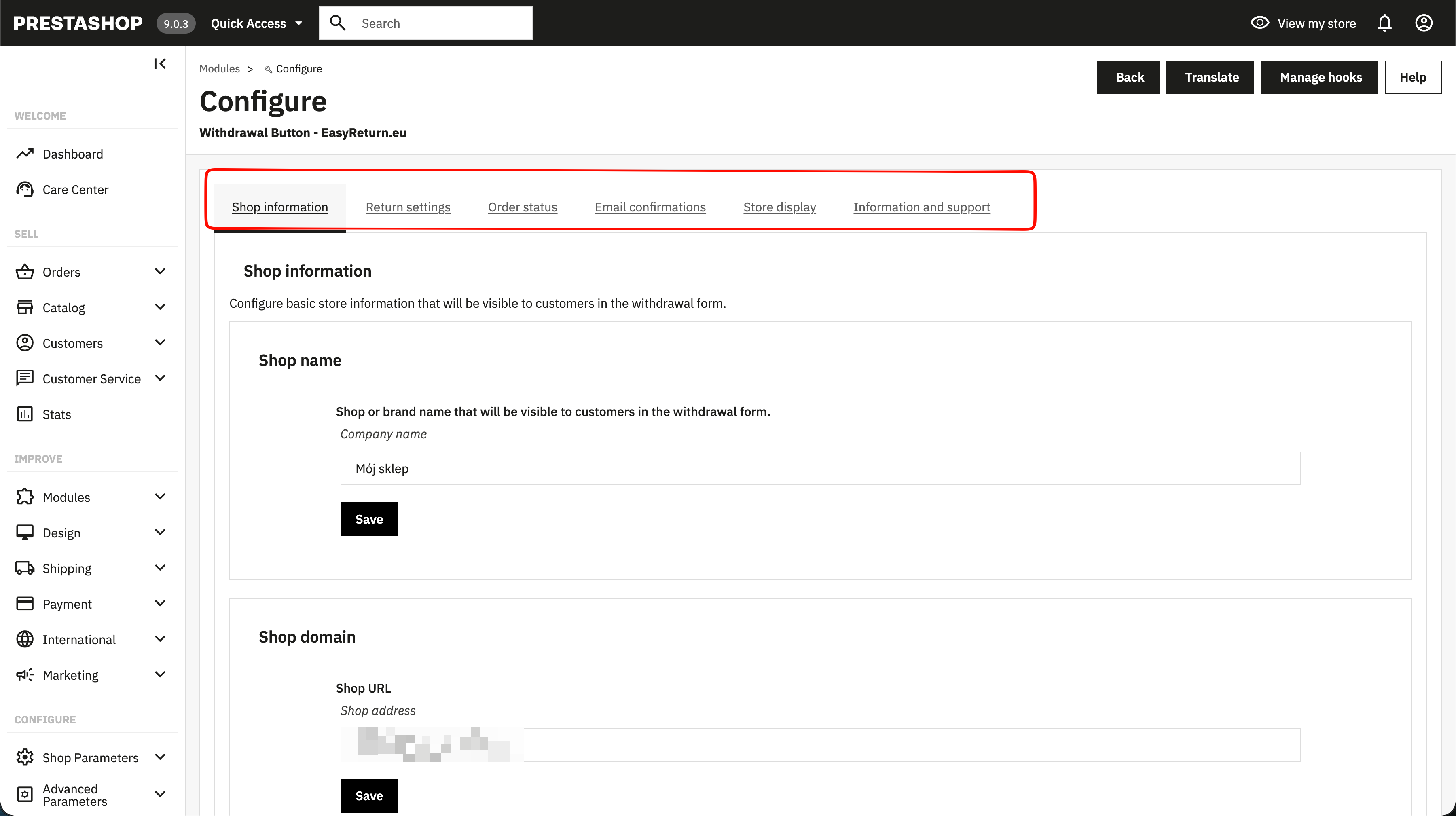
Shop name
Shop or brand name that will be visible to customers in the withdrawal form.
Shop domain
Your store's URL. Filled in automatically from the PrestaShop configuration.
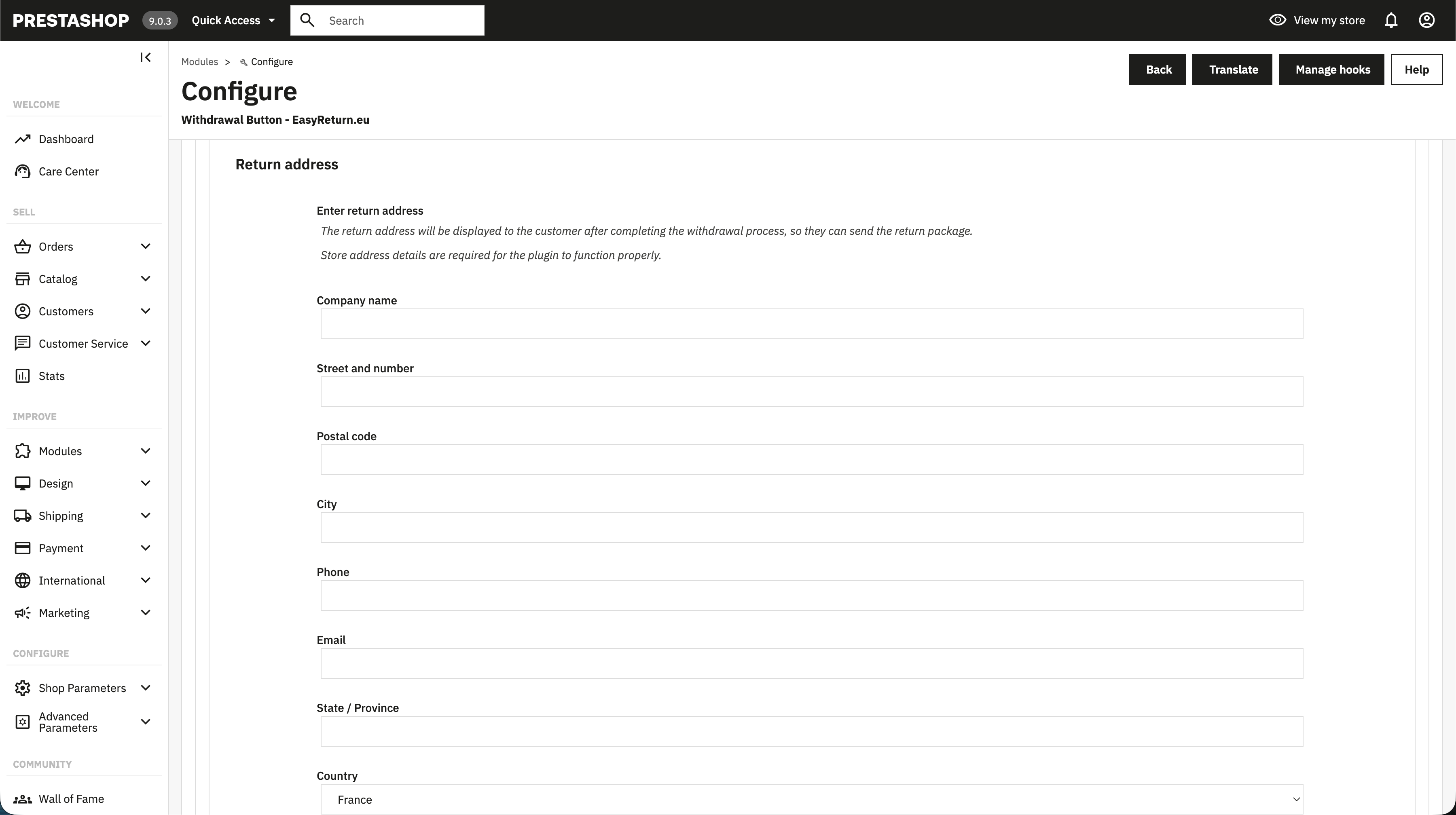
Return address
The return address is displayed to the customer after completing the withdrawal process, so they know where to send the return package. All fields are required for the plugin to function properly.
- Company name
- Street and number
- Postal code, city, state / province, country
- Phone, email
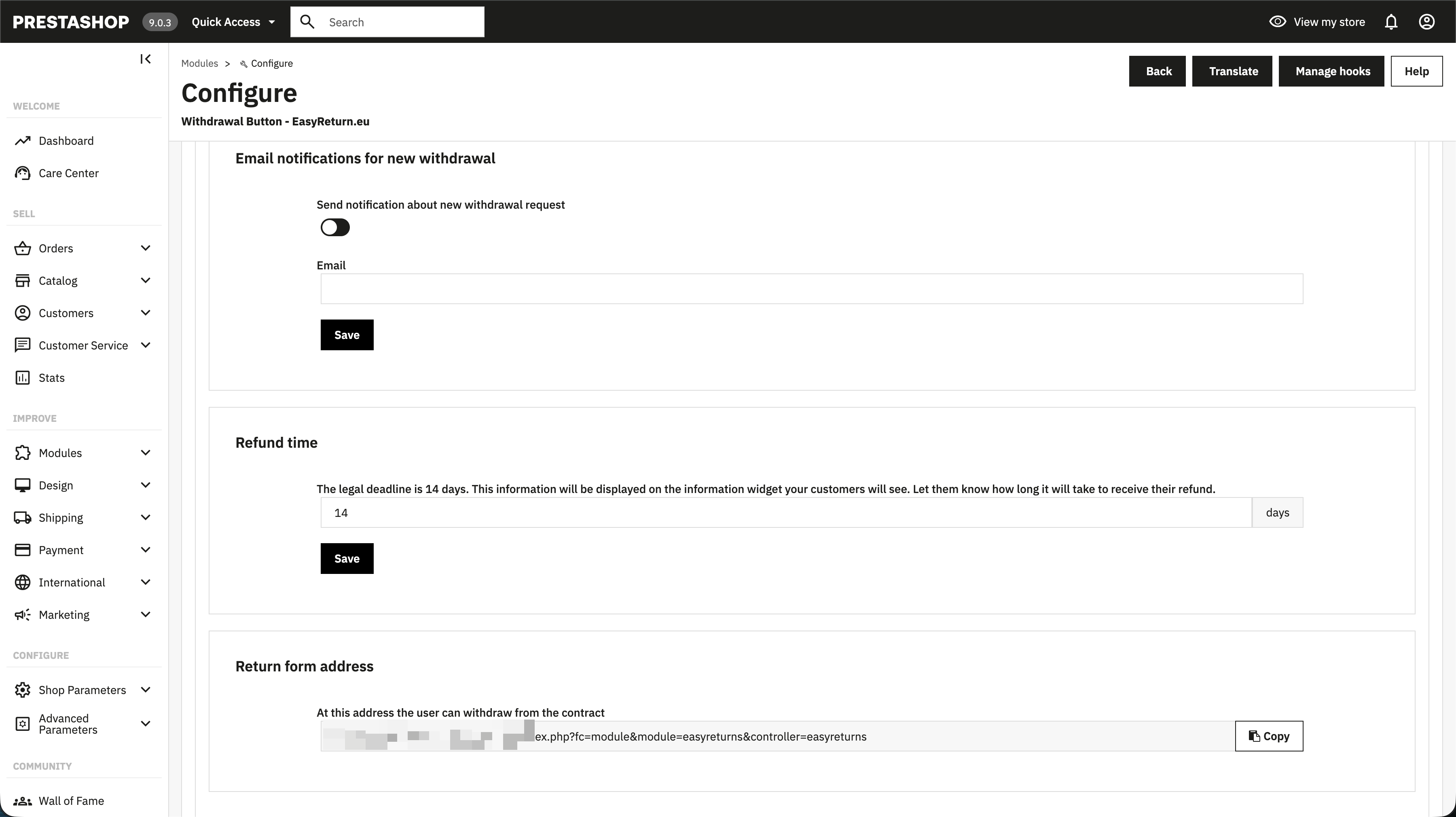
Email notifications for new withdrawal
When enabled, sends a notification to the specified email address each time a customer submits a withdrawal.
Refund time
The legal deadline is 14 days. This value is displayed in the informational widget shown to customers.
Return form address
The URL where customers can submit a withdrawal. Generated automatically when the plugin is installed. Use Copy to place it anywhere — for example in your terms and conditions or FAQ.
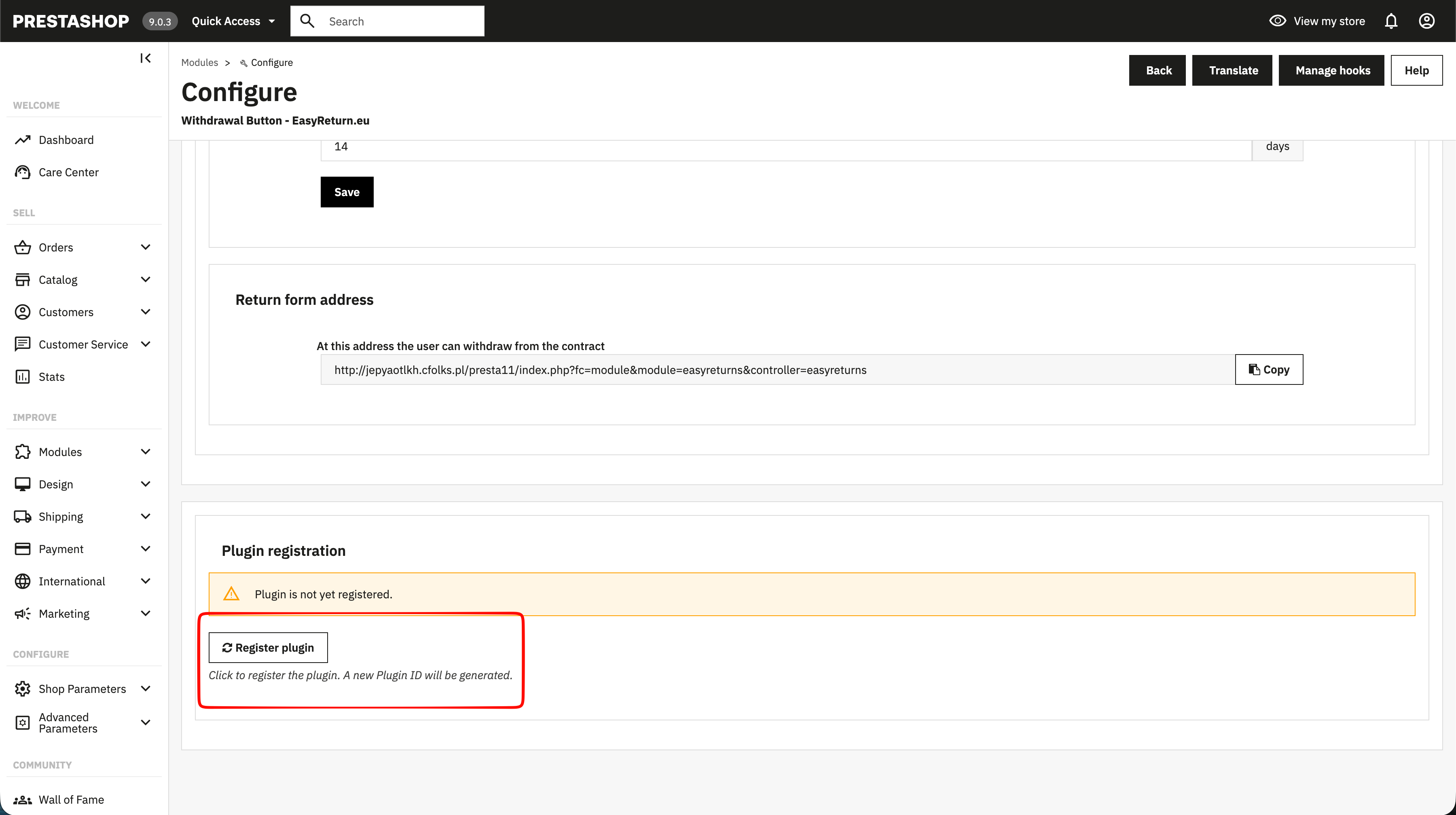
Plugin registration
Required for the plugin to connect to the EasyReturn service. Click Register plugin to generate a Plugin ID. Registration sends your store's basic data to api.easyreturn.eu once.
Return settings
Define the withdrawal process rules, including return time, available return reasons, and return methods.
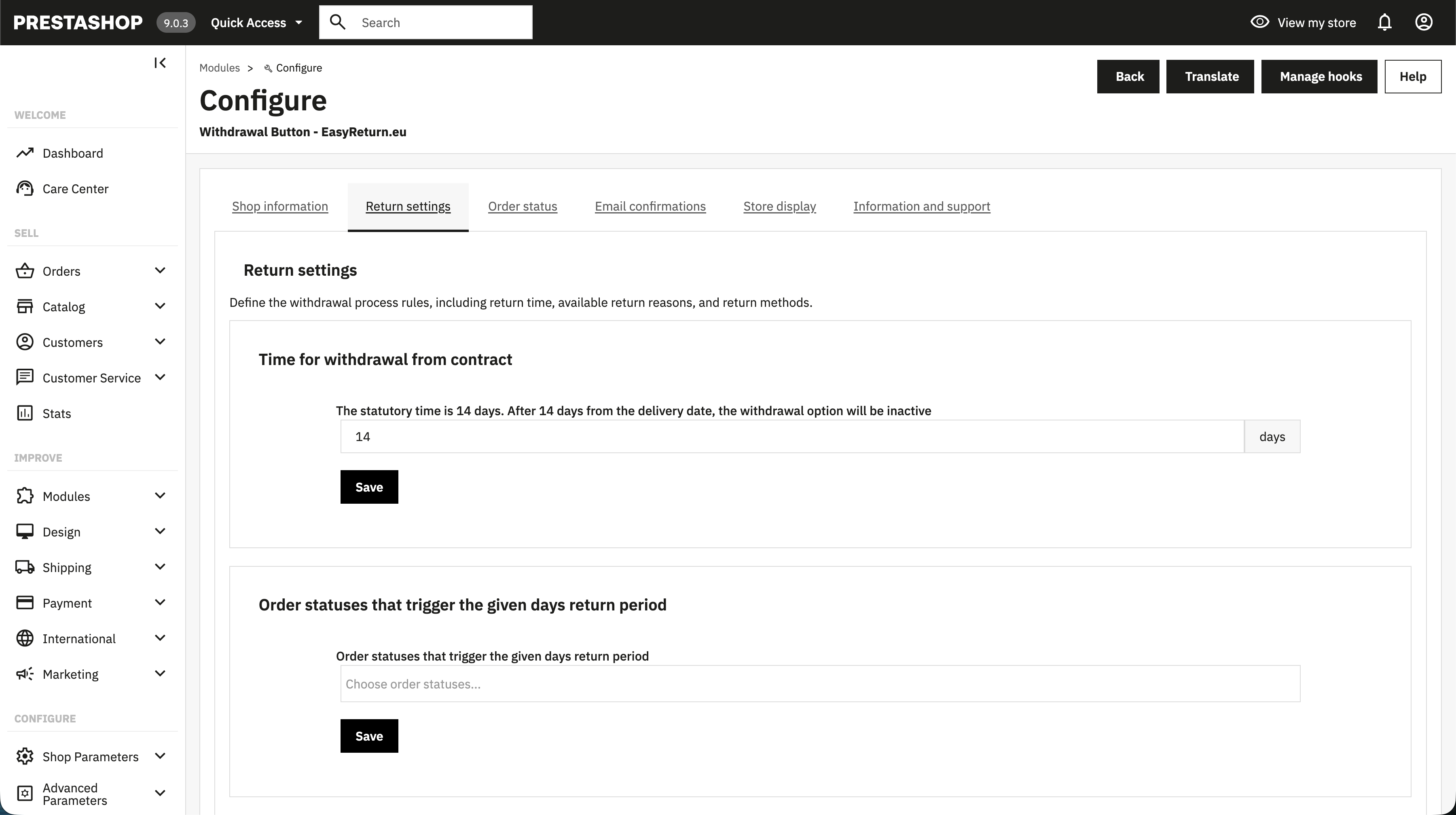
Time for withdrawal from contract
Number of days during which a customer can submit a withdrawal. After this period the withdrawal option becomes inactive. Defaults to 14 days — the statutory period set by law.
Order statuses that trigger the withdrawal period
The withdrawal period is counted from the date the consumer receives the goods. If your store does not have an order status that reflects actual delivery, extend the withdrawal period to account for shipping time.
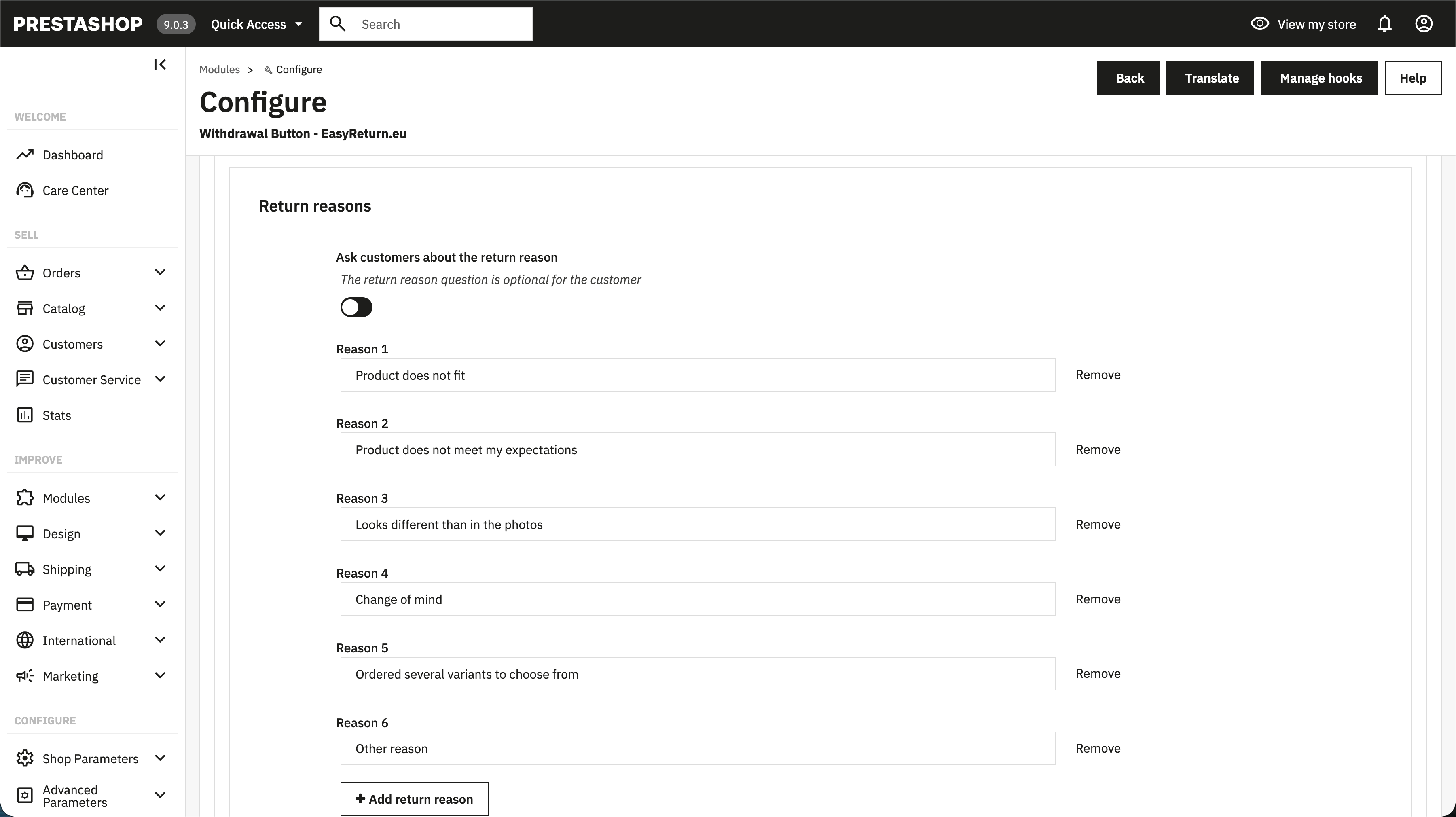
Return reasons
Enables a reason selection field on the withdrawal form. The field is optional for the customer. Predefined options are provided by default.
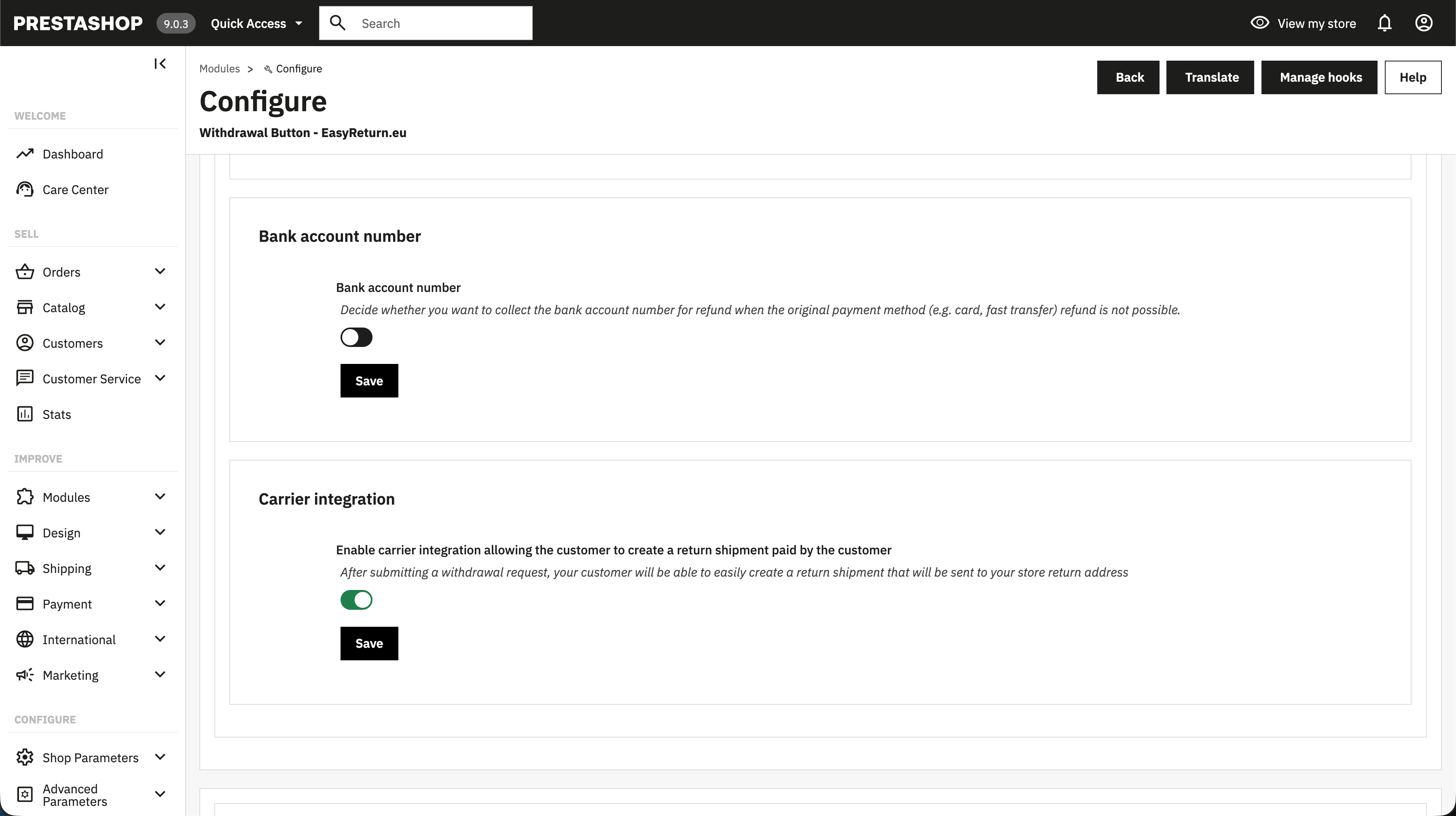
Bank account number
Adds an optional bank account field to the withdrawal form. Useful when the original payment method does not support automatic refunds, e.g. for orders paid with cash on delivery (COD).
Carrier integration
Allows customers to create a return shipment directly after submitting a withdrawal. The shipment is sent to your store's return address. Shipping cost is covered by the customer. Available in selected countries — the option is enabled automatically once launched for your region.
Order status
Configure automatic order status changes triggered by customer withdrawals.
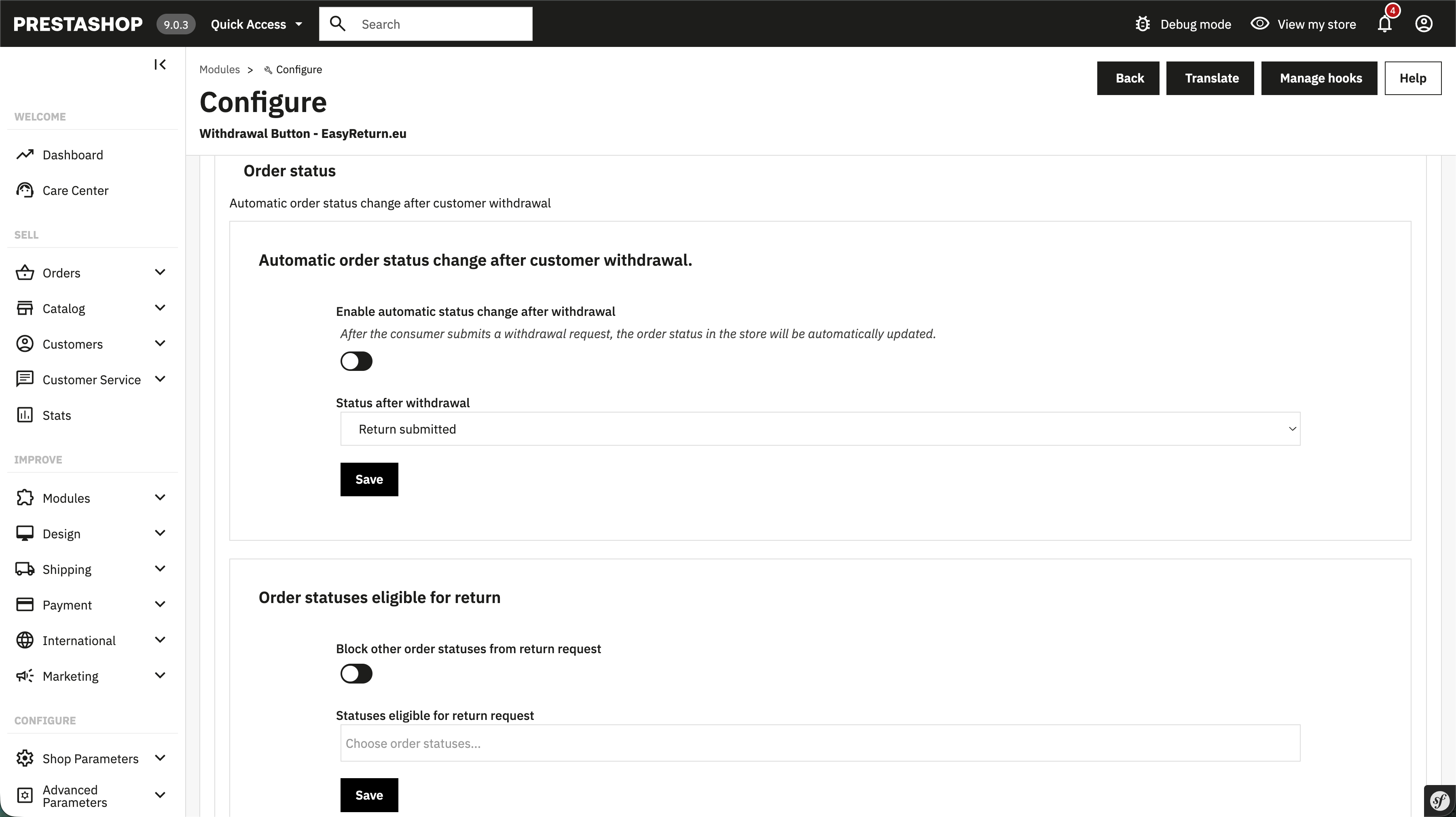
Automatic order status change after withdrawal
When enabled, the order status in the store is updated automatically after a customer submits a withdrawal. This makes withdrawals visible directly in your admin panel.
Status after withdrawal
The order status applied automatically after a withdrawal is submitted. Defaults to Return submitted.
Order statuses eligible for return
Select which order statuses allow customers to initiate a withdrawal. Orders with statuses not on this list will have the withdrawal option blocked. If none are selected, all statuses are allowed.
Email confirmations
Configure and customize the confirmation email sent to customers after a withdrawal is submitted.
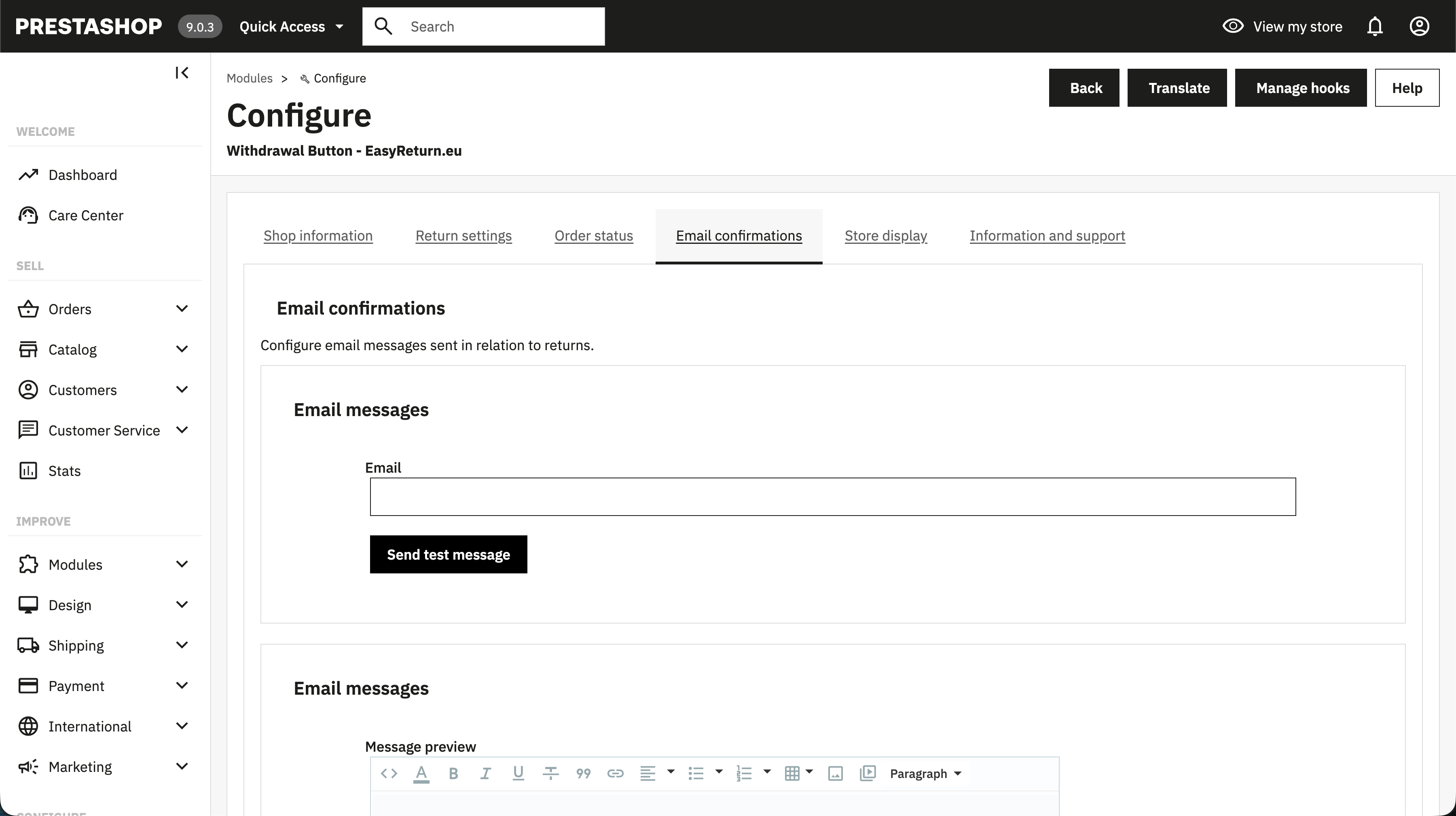
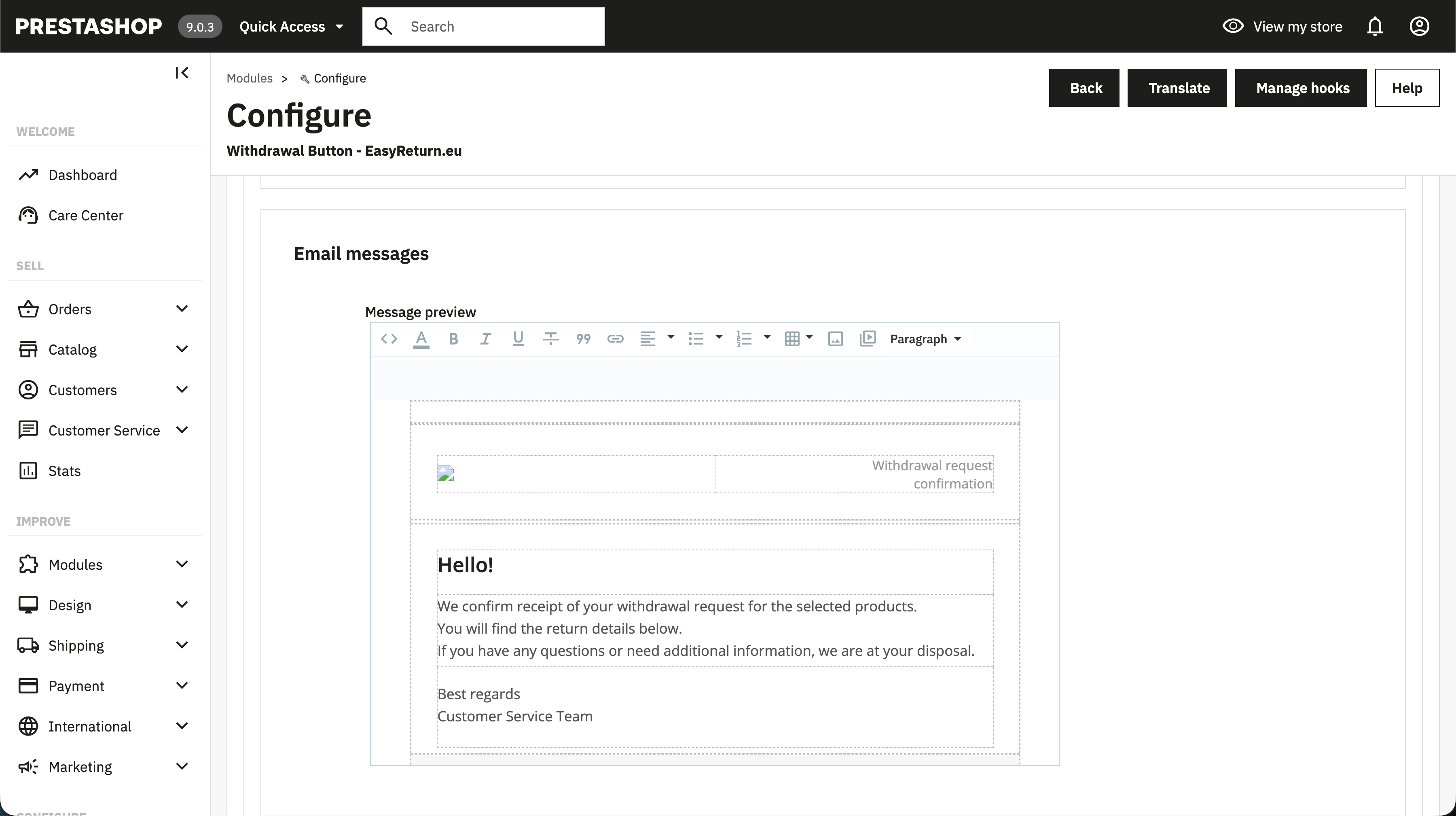
Email template
The full HTML content of the confirmation email. Edit it directly using the toolbar for basic formatting, or switch to code view to paste custom HTML for full control.
Send test email
Enter an email address and click Send test message to preview how the confirmation email will look before going live.
Store display
Configure the visibility of the withdrawal module and decide where customers will see the withdrawal button.
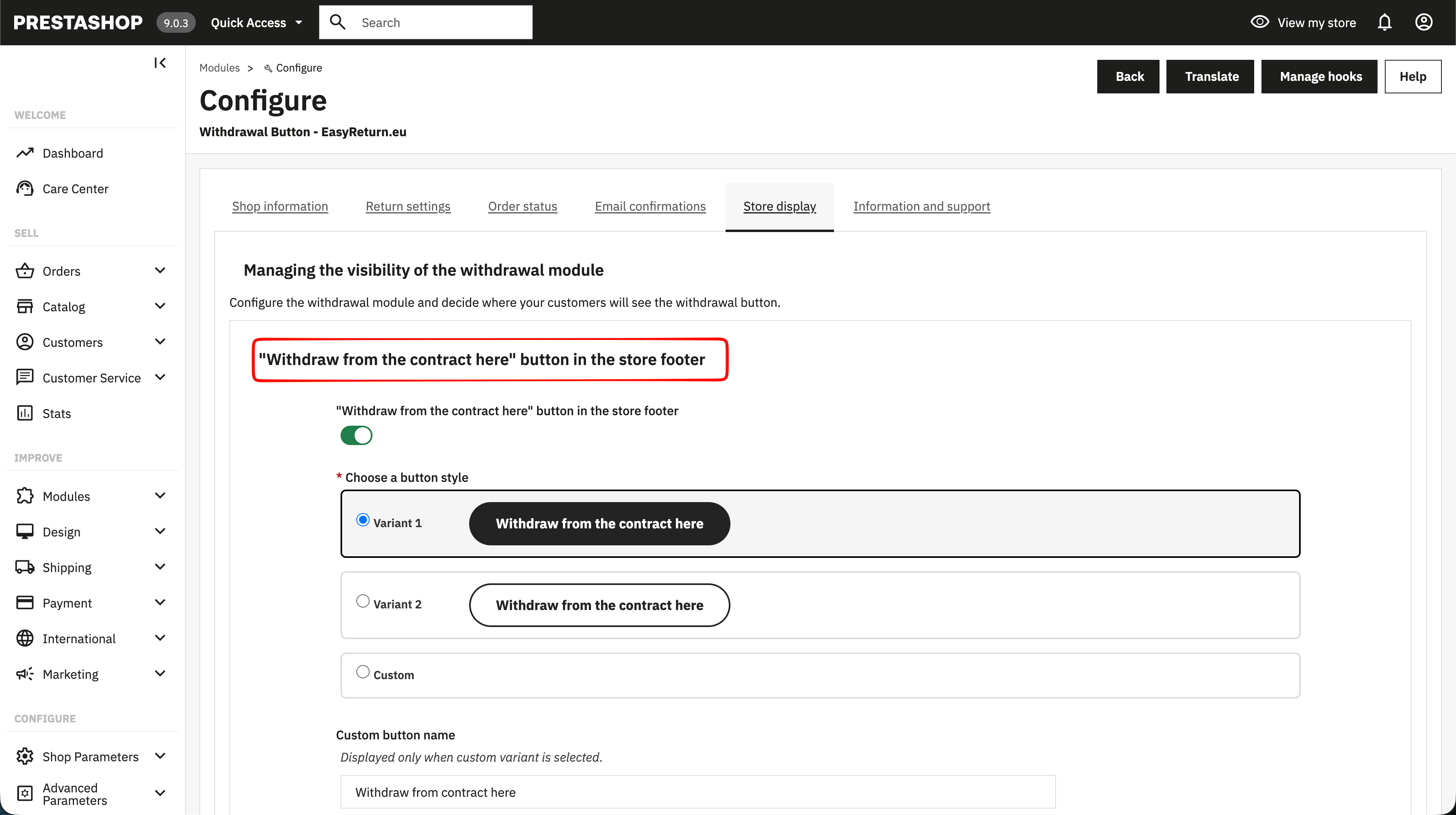
Button in the store footer
Adds a "Withdraw from the contract here" button to the store footer. Choose a predefined style or select the custom variant to set your own button name and CSS.
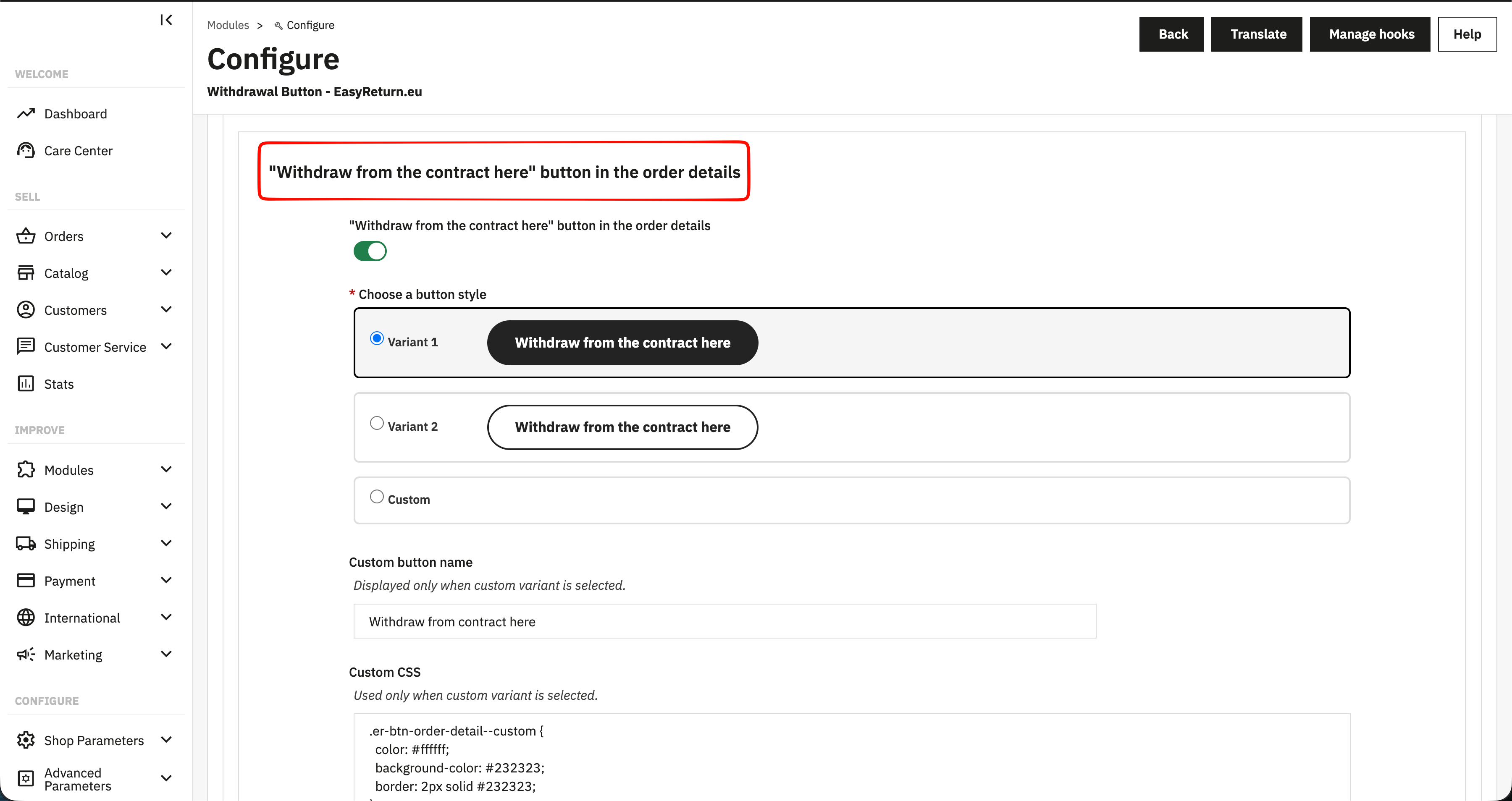
Button in order details
Displays the withdrawal button on the customer's order details page. Customer data from the order is passed automatically to the withdrawal form. Choose a predefined style or use the custom variant with your own name and CSS.
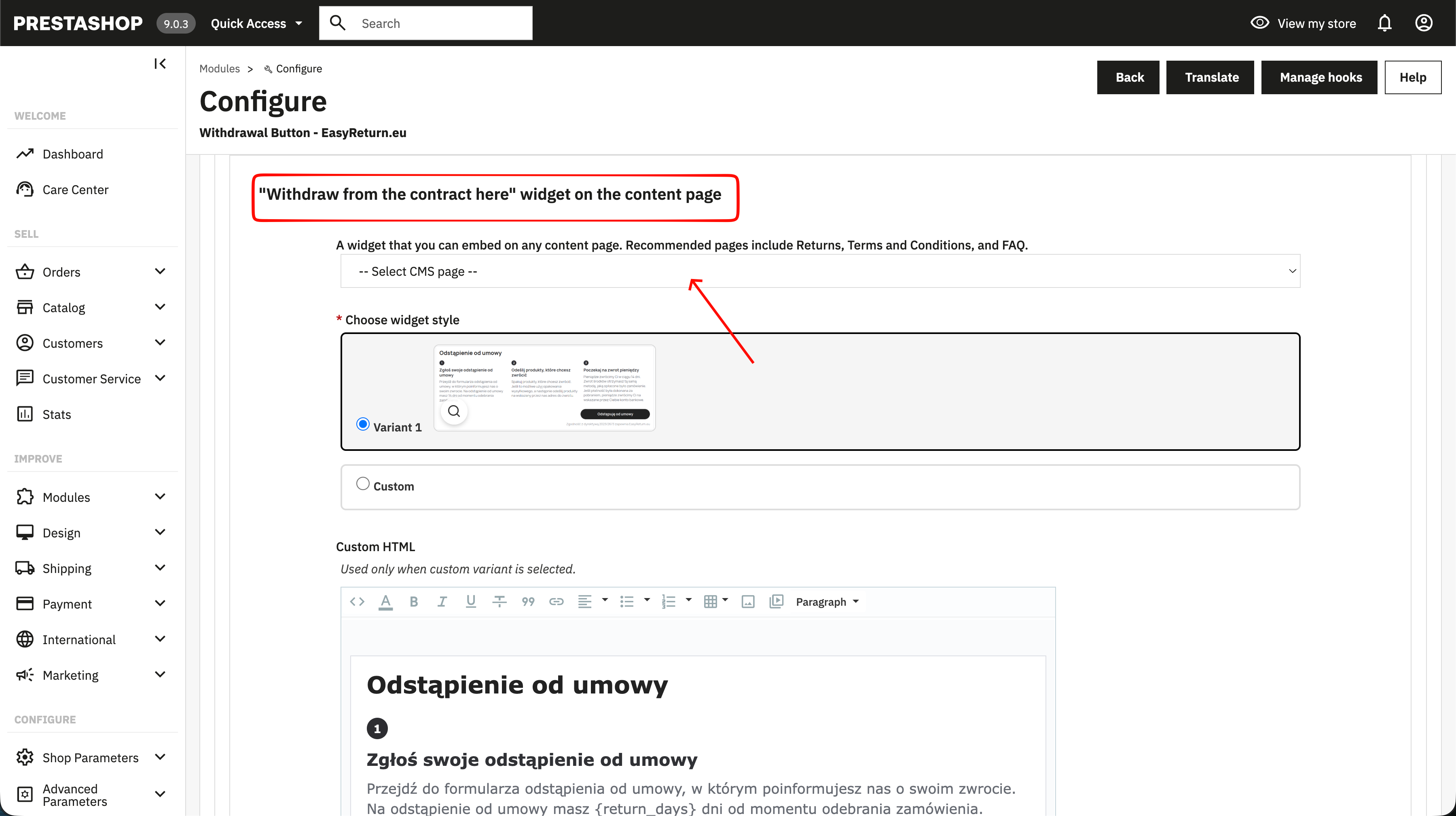
Widget on a content page
A full informational widget that can be embedded on any CMS page. Recommended on Returns, Terms & Conditions, and FAQ pages. Select the target page, choose a widget style, or use the custom HTML variant for full control.
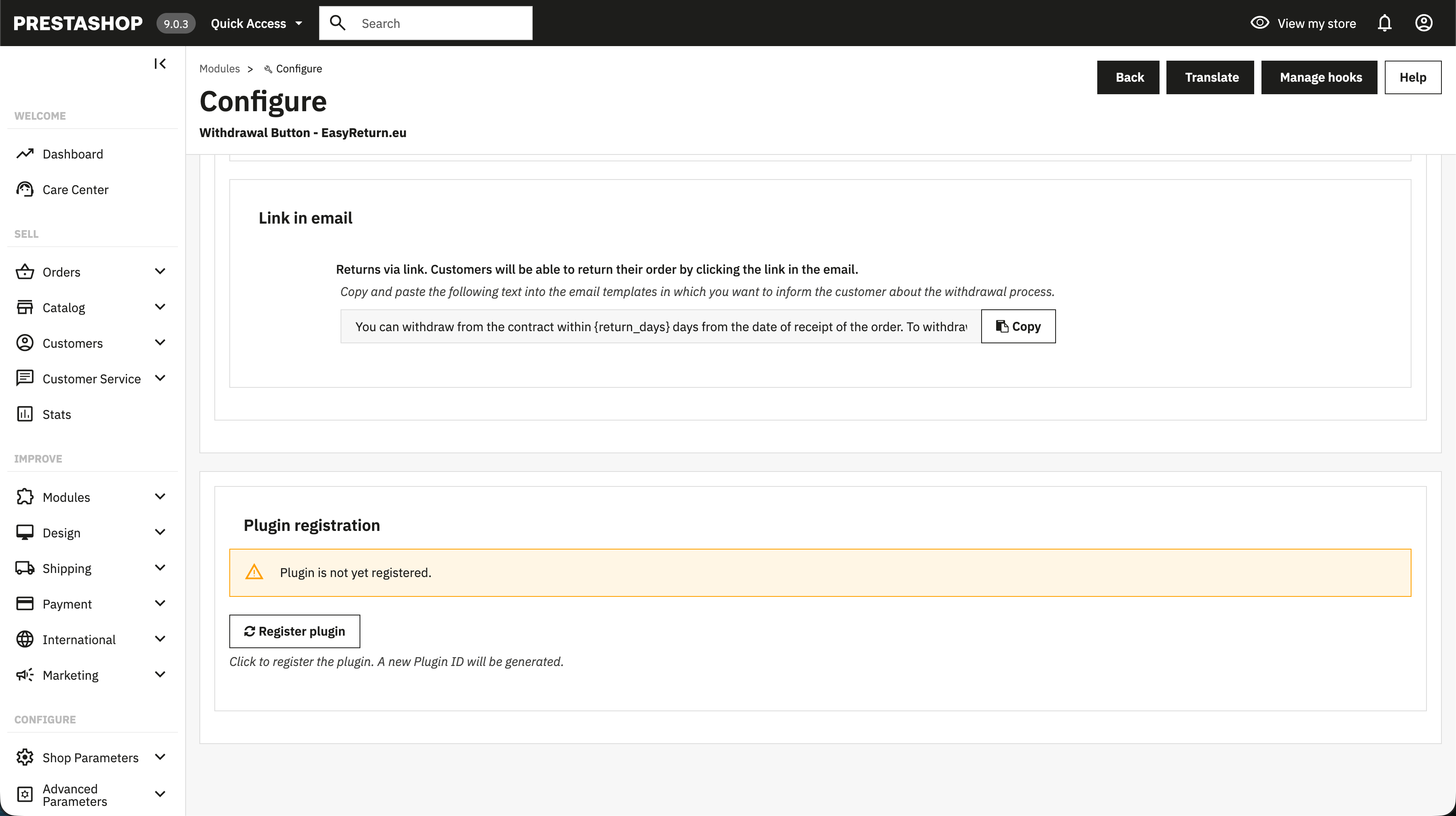
Link in email
Copy and paste the provided text into your email templates to inform customers about the
withdrawal option. Uses dynamic tags {return_days}
and {return_link}
replaced with real values at send time.
Information and support
The last tab contains plugin version information, license details, and links to support resources. No configuration is required here.