How it works — PrestaShop
A complete walkthrough of the withdrawal process — from the customer's first click to the admin managing the request. EasyReturn supports both logged-in customers and guests.
Customer flow
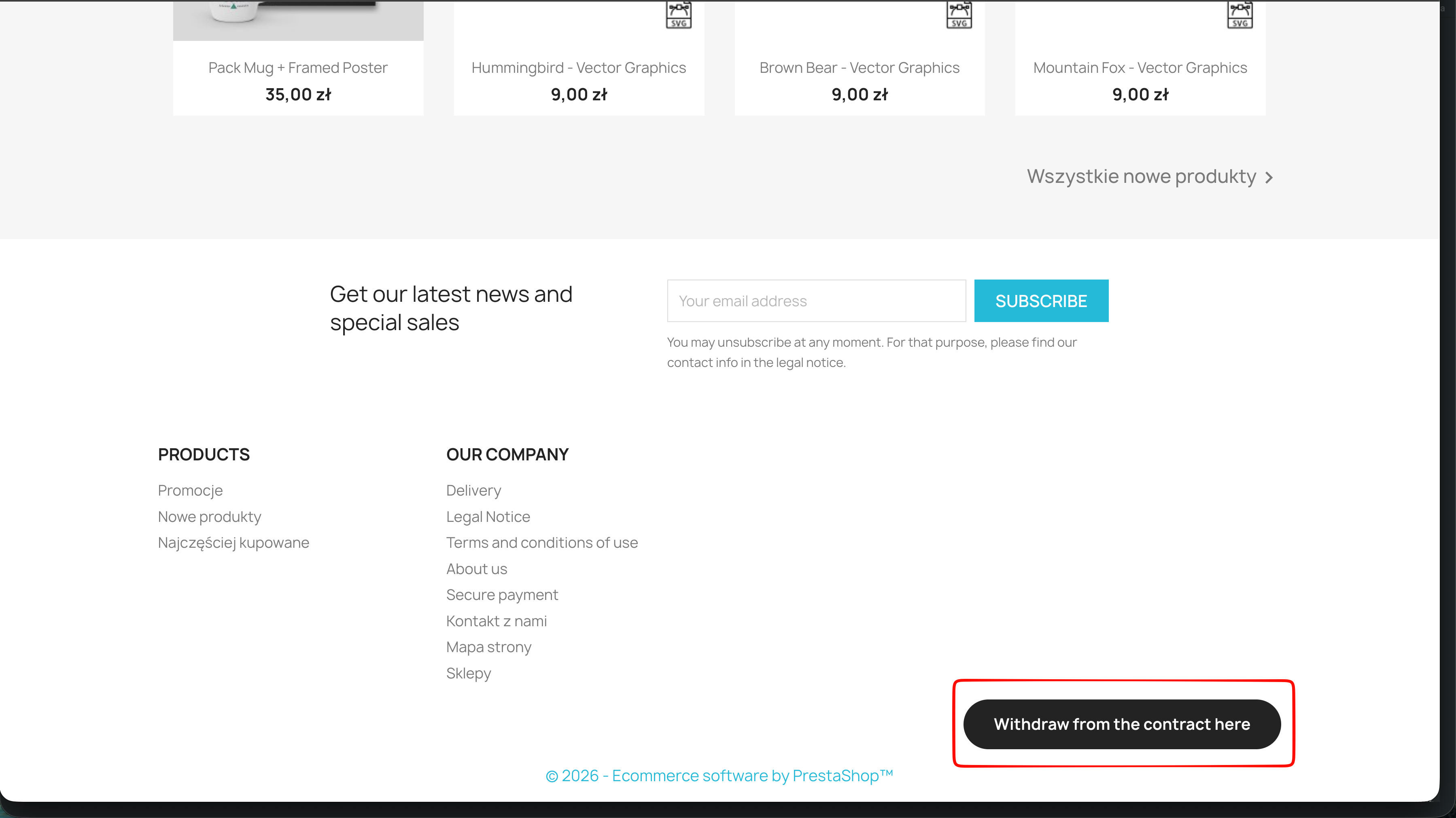
The Withdraw from the contract here button appears in the store footer on every page — available to all customers regardless of login status. Logged-in customers also have a shortcut directly on the order details page.
Logged-in customer
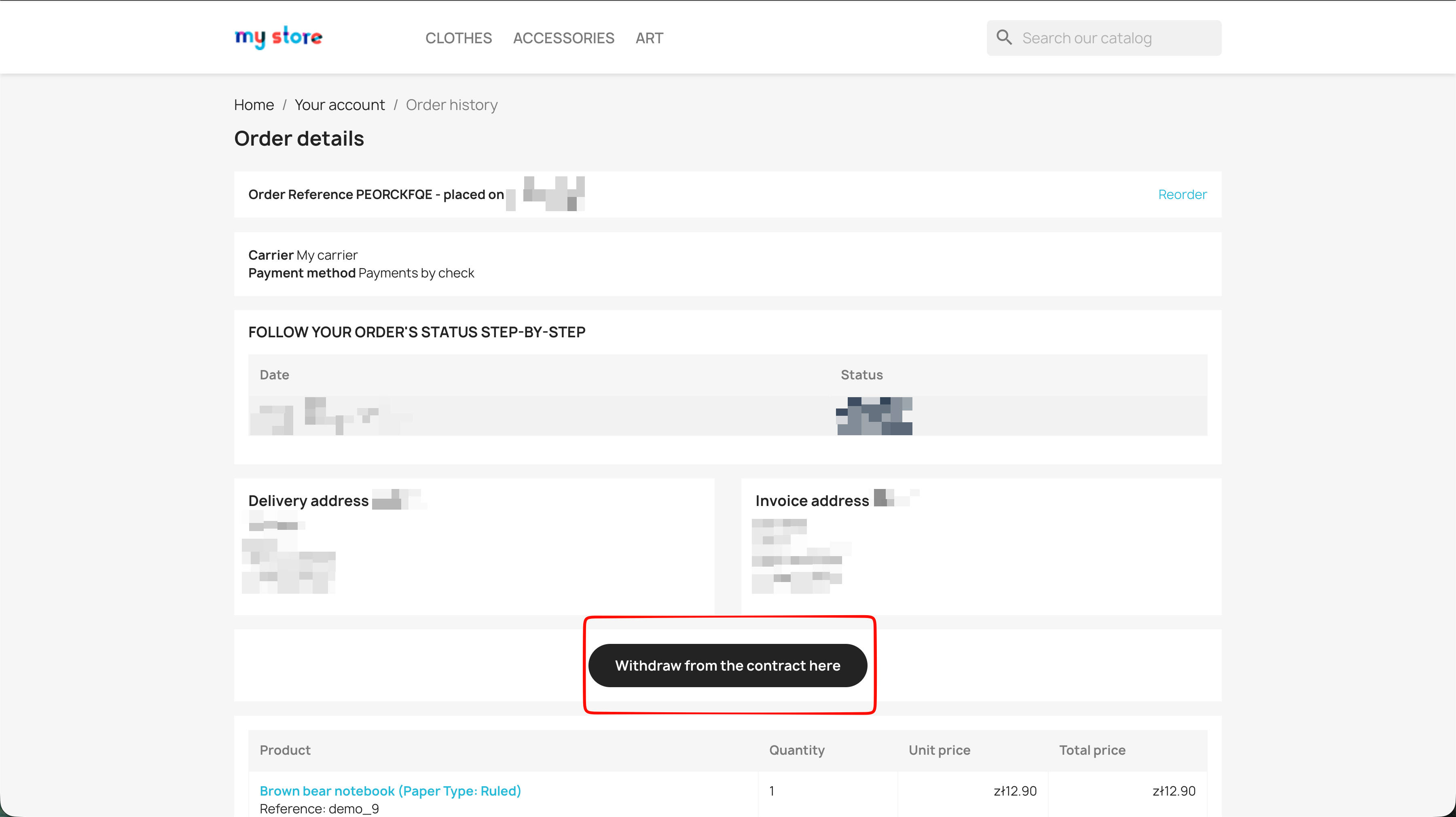
RegisteredOpen the form from the order details page
A 'Withdraw from the contract here' button appears directly on the order details page. Clicking it opens the withdrawal form pre-filled with that order's data — no order lookup required.
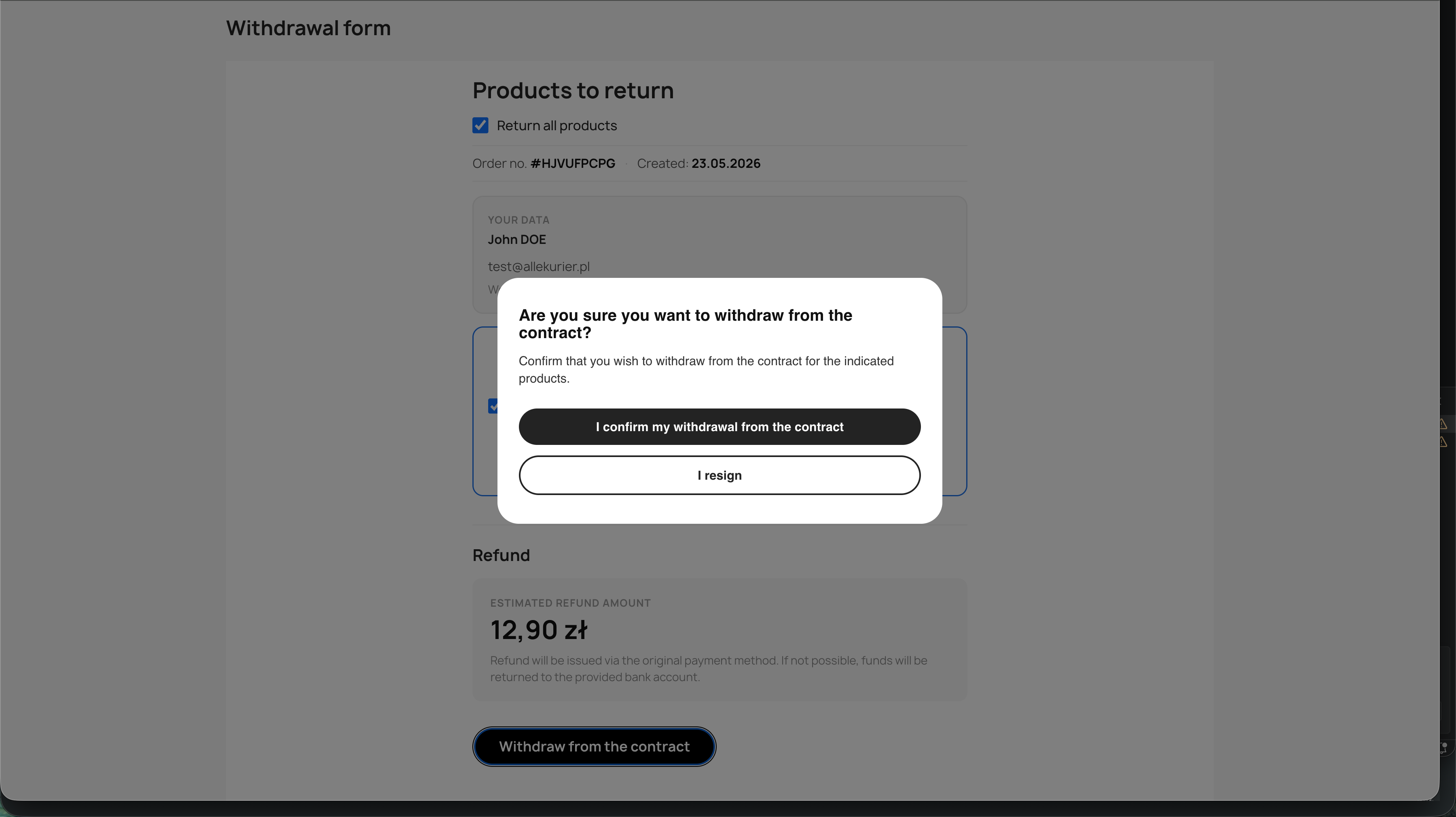
Select products and confirm
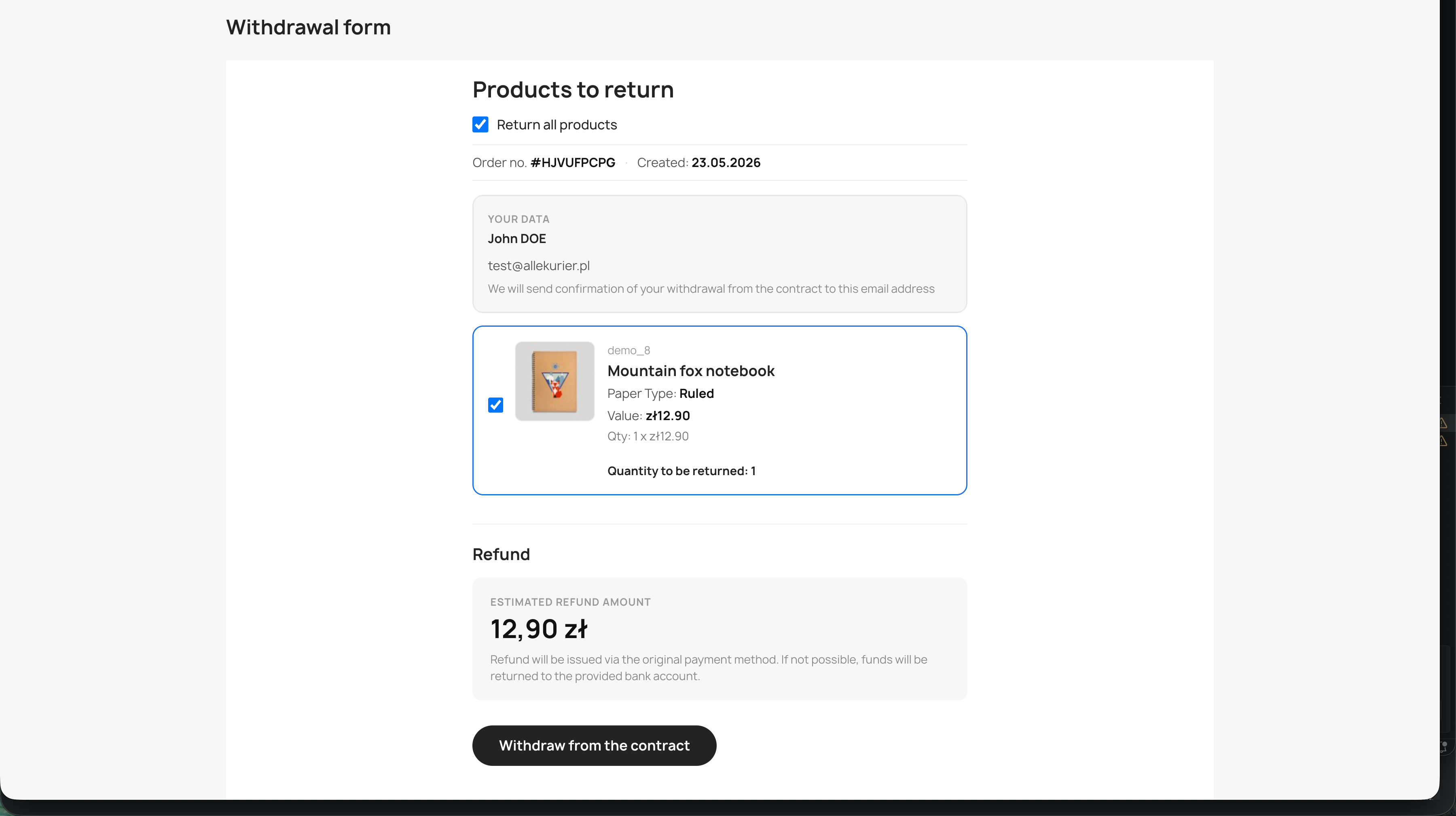
The customer selects the products to return, optionally picks a return reason, and enters their bank account number if required. A confirmation dialog asks them to confirm the withdrawal before submitting.
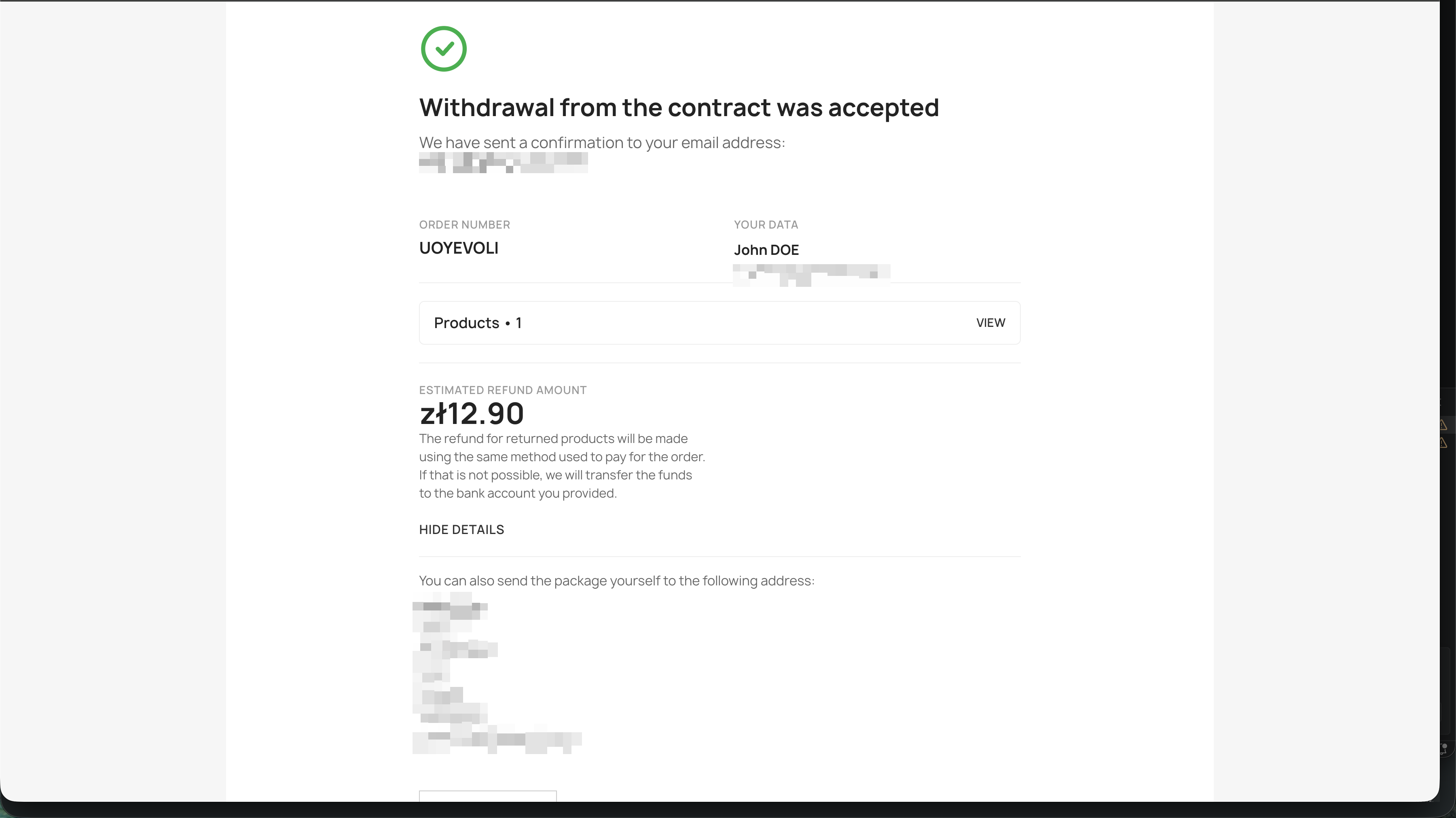
Withdrawal accepted
After confirming, a confirmation email is sent automatically. The success screen shows the order number, estimated refund amount, and the store's return address.
Guest customer
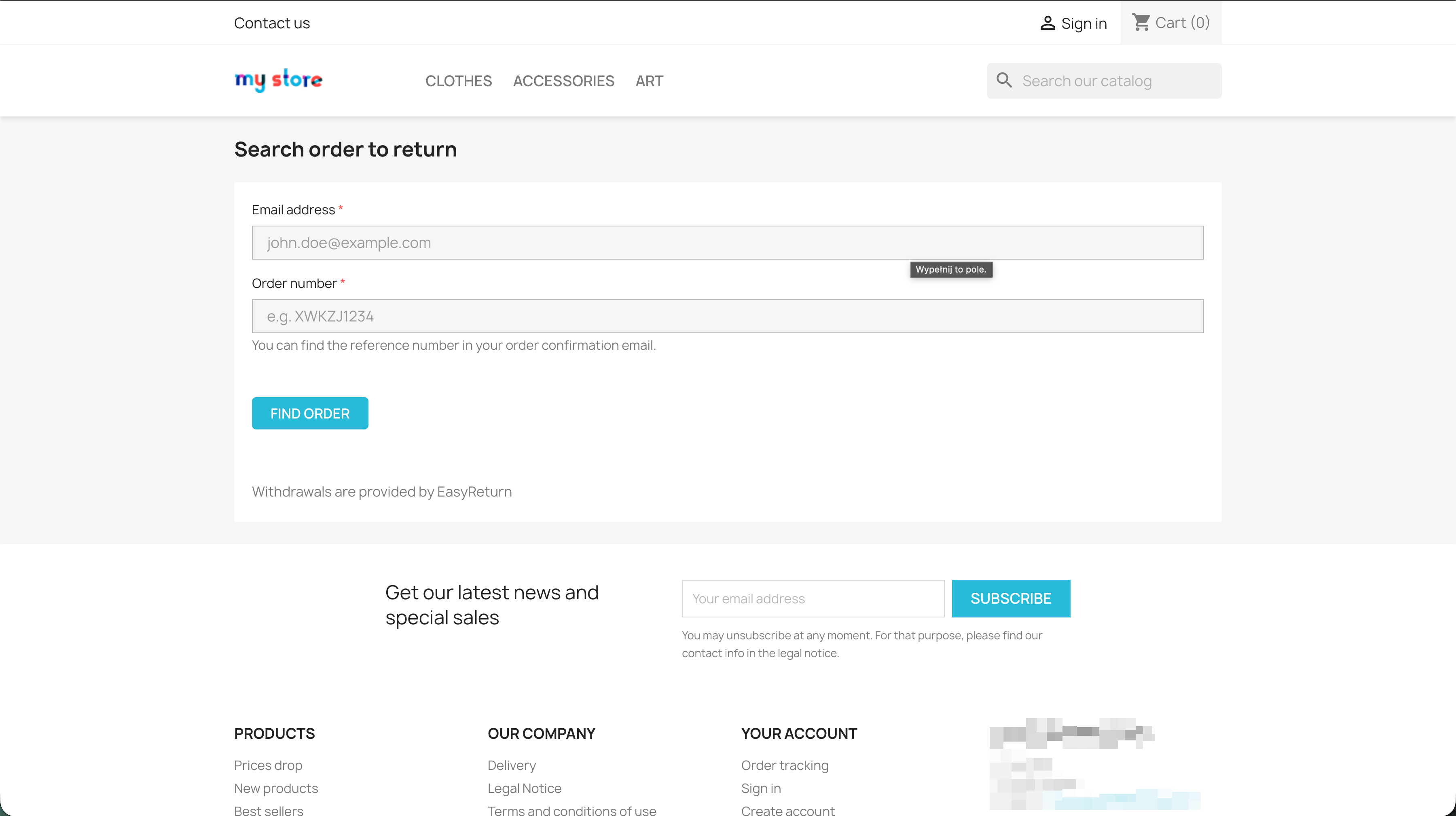
Not logged inOpen the withdrawal form
Guests can use the footer button visible on every page. After clicking it, they enter the email address used at checkout and their order number to look up the order.
Select products and confirm
After the order is verified, the customer selects the products to return and optionally picks a return reason. The estimated refund amount is calculated in real time. A confirmation dialog asks them to confirm before submitting.
Withdrawal accepted
After confirming, a confirmation email is sent to the address provided. The success screen shows the order details, estimated refund amount, and the store's return address.
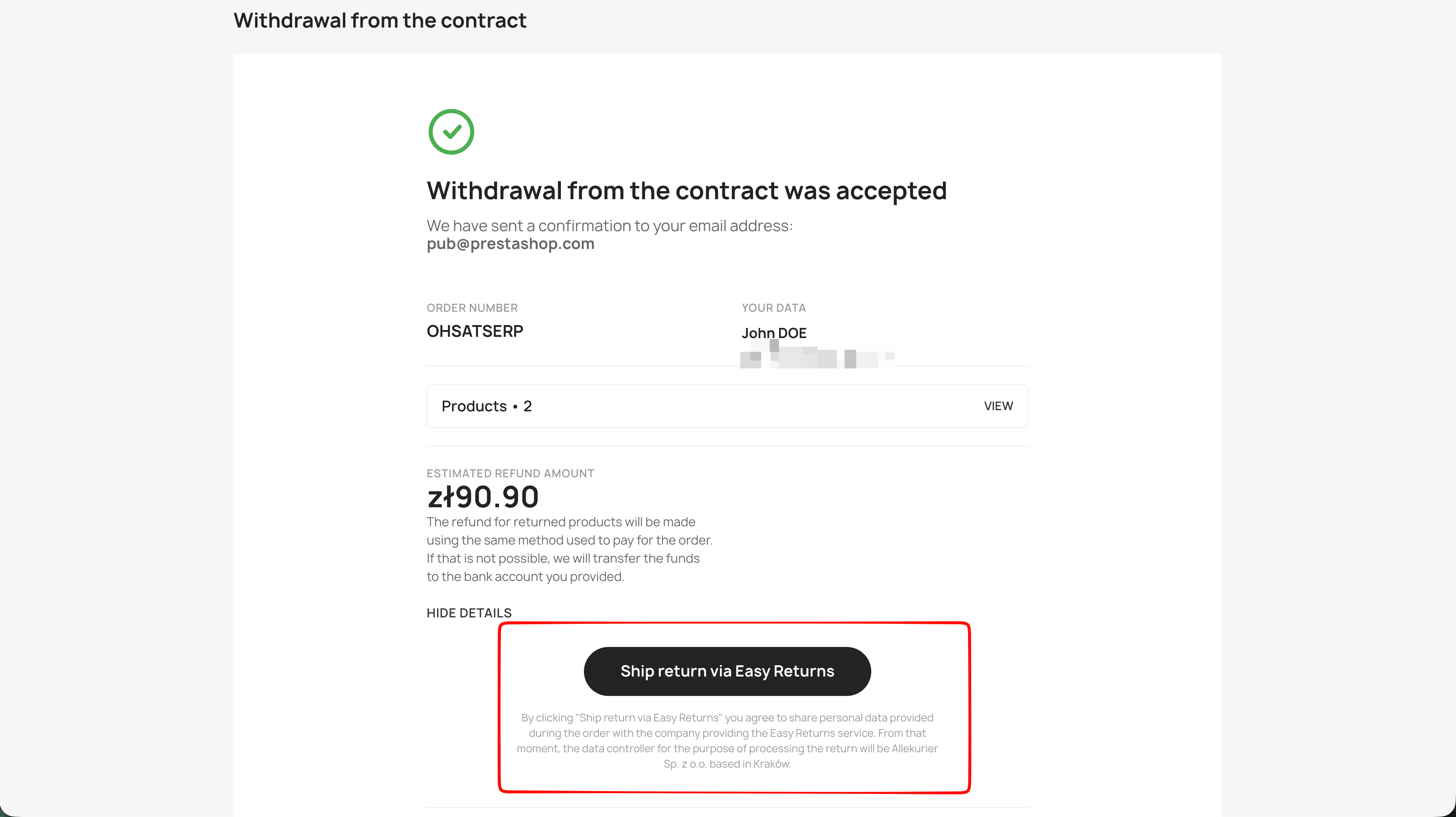
Create a return shipment (optional)
If carrier integration is enabled in the store settings, a 'Ship return via Easy Returns' button appears on the confirmation screen. The customer can create a return shipment instantly. Alternatively, the store's return address is shown for customers who prefer to ship the package themselves.
Admin flow
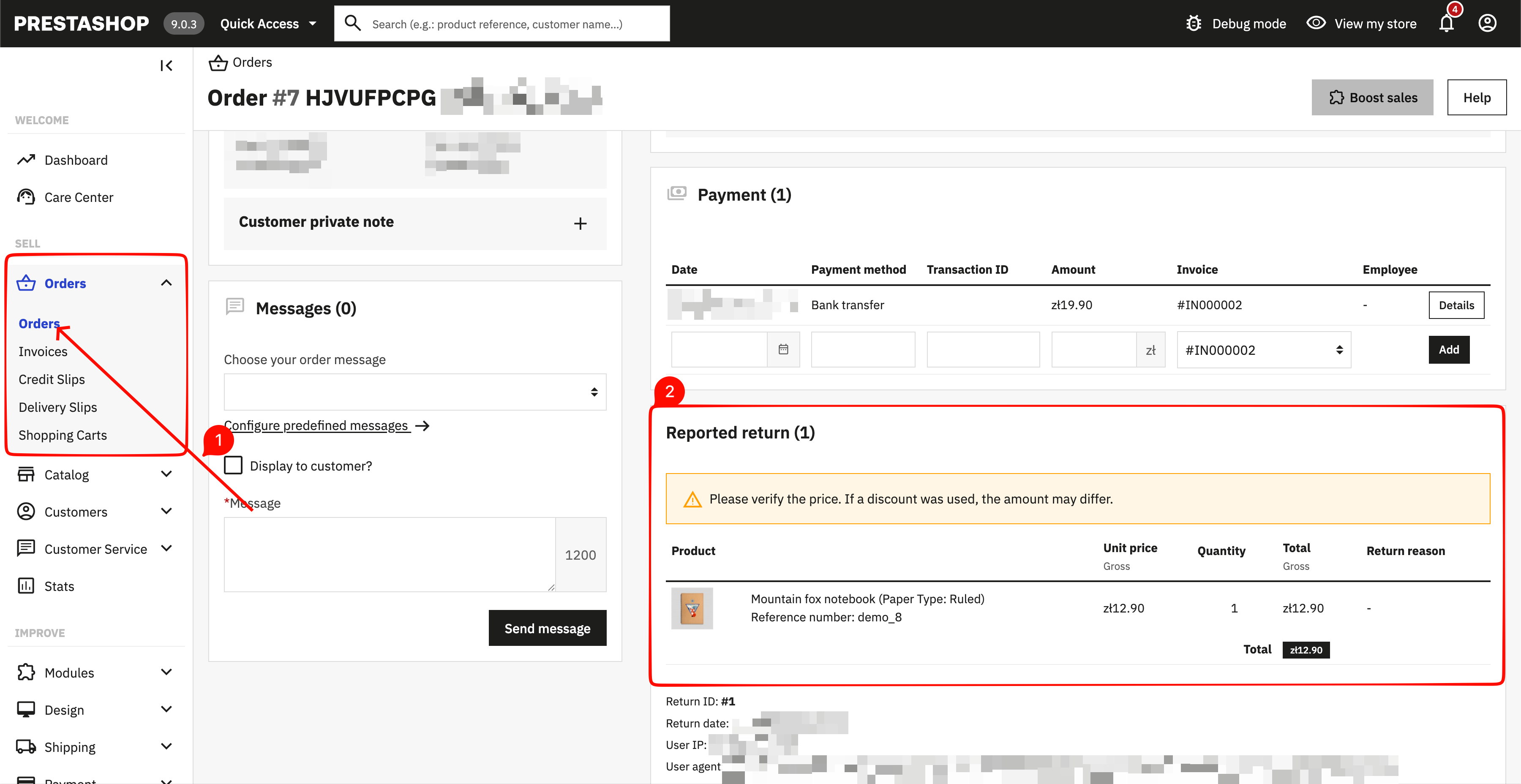
Review withdrawal details in the order
After a customer submits a withdrawal, a 'Reported return' section appears directly on the order page in the admin panel. It shows the returned products, quantities, unit prices, total value, and return reason.
Adding the withdrawal link to order emails
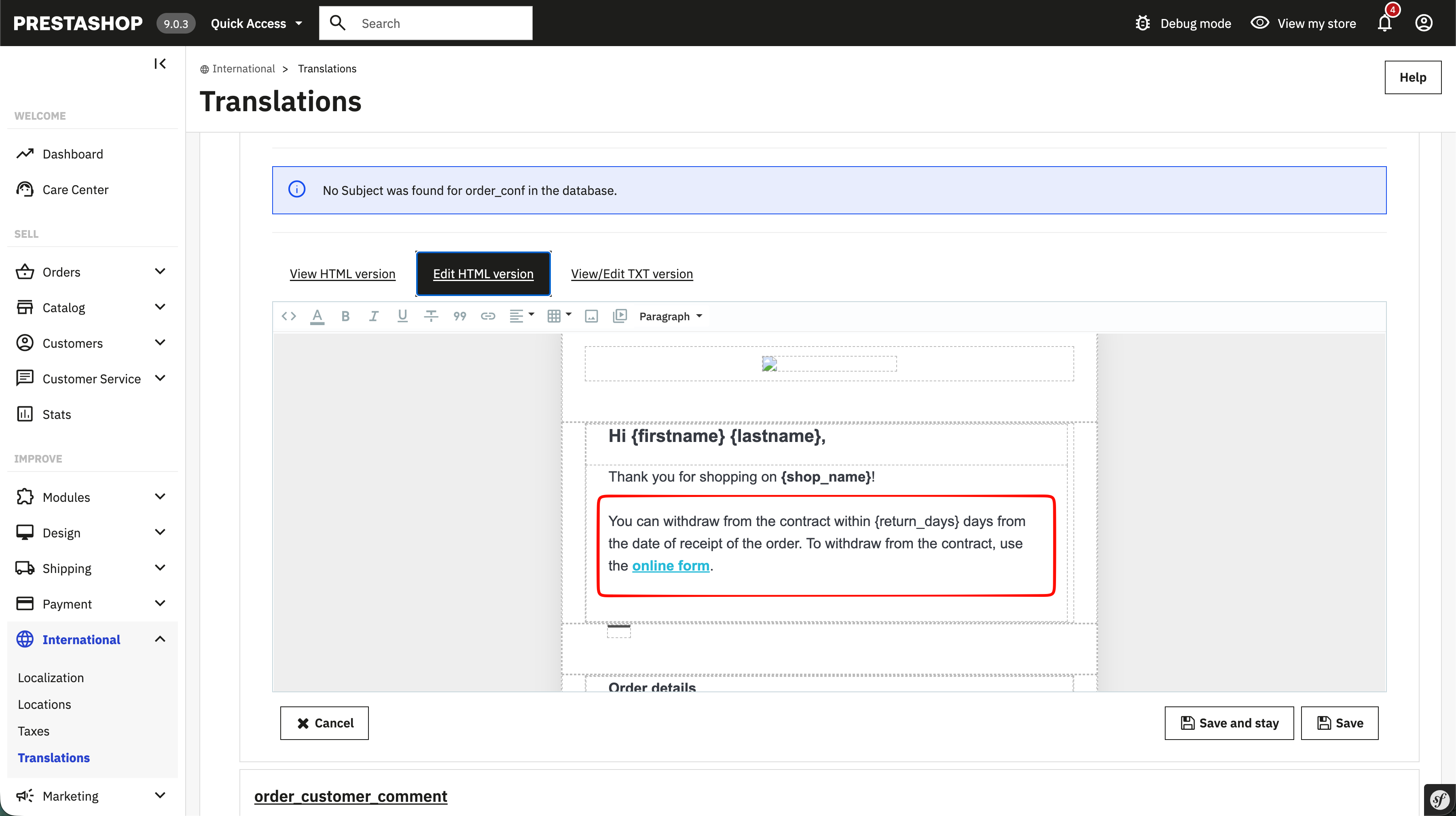
PrestaShop does not add the withdrawal link to order emails automatically. To inform customers about the withdrawal option, you need to add the link manually to the order confirmation email template via International → Translations.
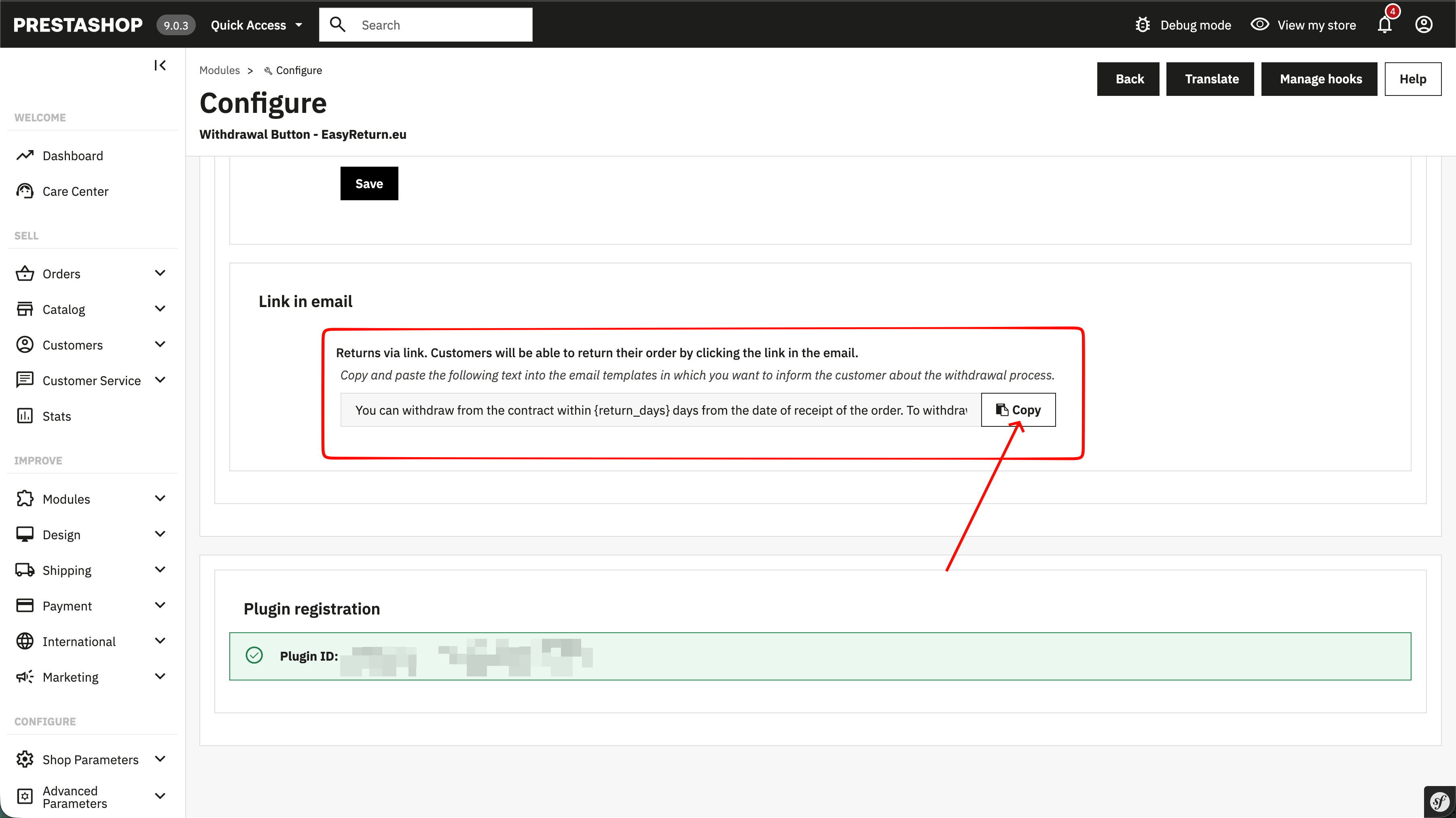
Copy the withdrawal link text
Go to Modules → Configure → Withdrawal Button - EasyReturn.eu, open the Store display tab, find the Link in email section, and click Copy. This copies a ready-made text with dynamic tags {return_days} and {return_link}.
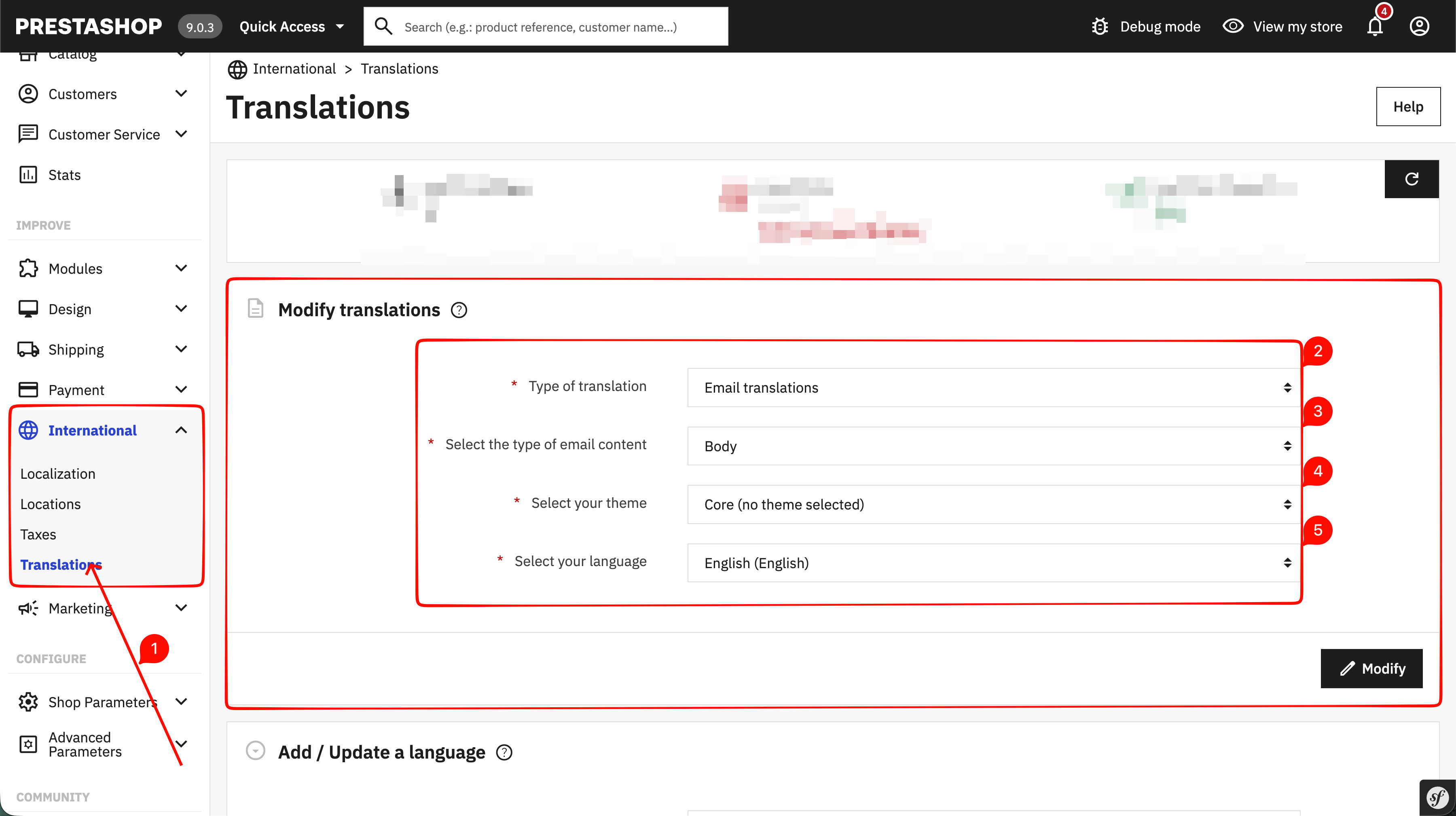
Open the email translations editor
Go to International → Translations. Set the type to Email translations, content to Body, theme to Core, select your language, and click Modify.
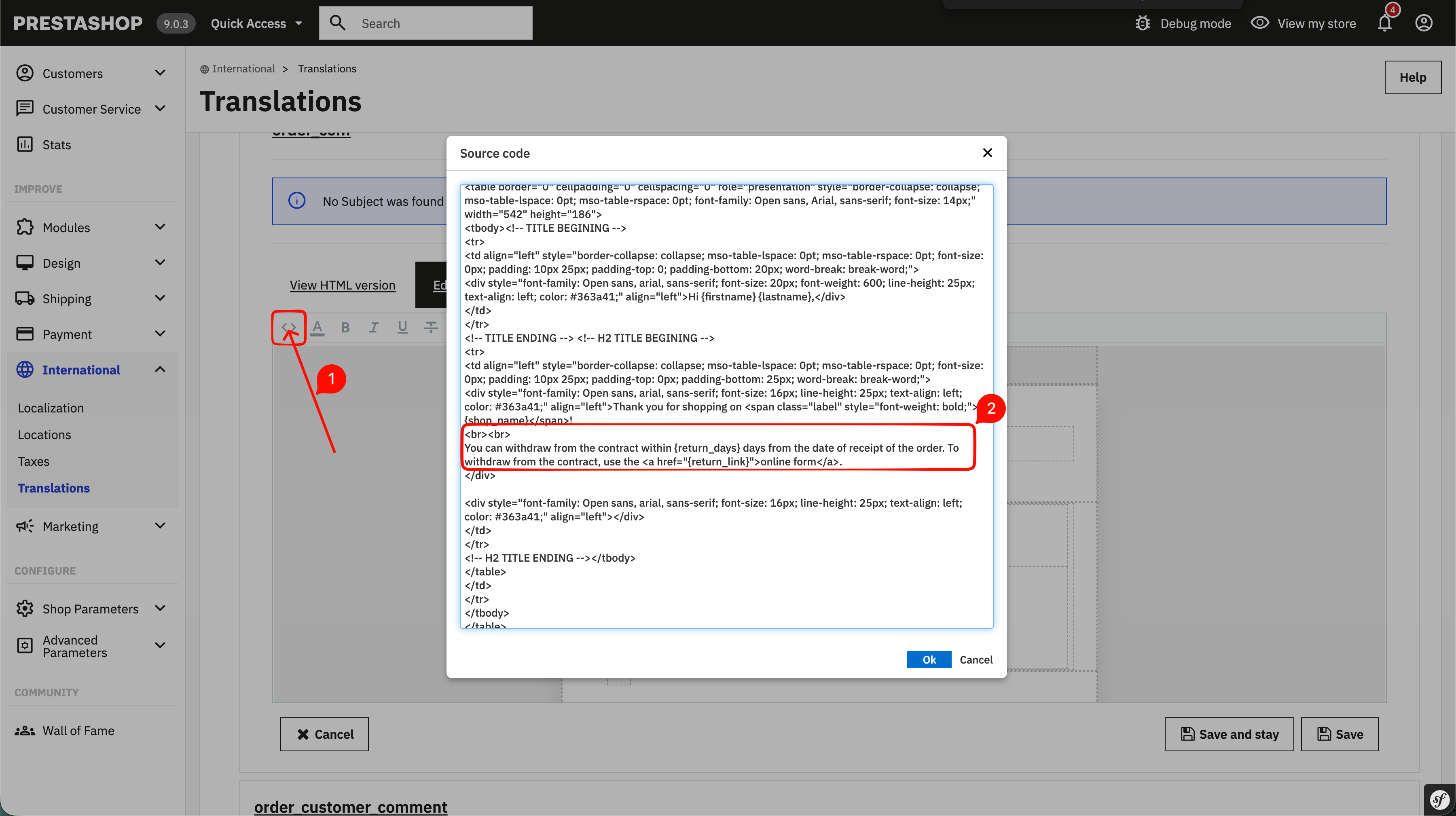
Paste the text into the order_conf template
Find the order_conf template in the list, open it, and switch to Source code view. Place the cursor where you want the withdrawal text to appear and paste the copied text.
Save the changes
Click Save and stay or Save. The withdrawal text with the return link now appears in the order confirmation email sent to customers.